
Activity Log
Loading content...
Revision List Sidebar
View and act upon revisions from a single place
Your command center for Revisions
In a similar strategy as our Scene Navigator sidebar, where you can see and jump to different scenes with a click, we have a sidebar panel dedicated to showing you all the revisions in your script, with the ability to take actions on any of them.
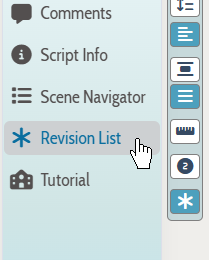
To bring up the Revision List, click on the Revision List entry in the sidebar at the left edge of the screen when editing the script:
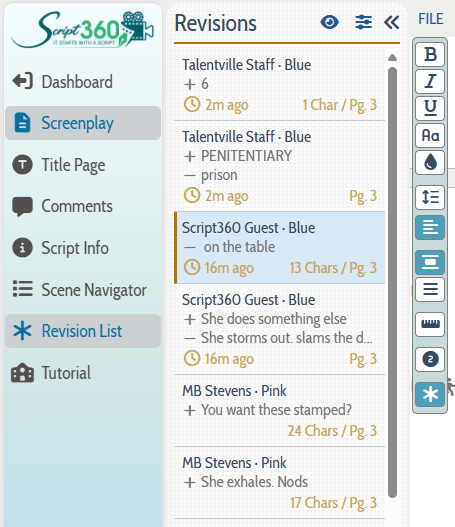
When clicked, the Revision List sidebar slides out, showing a list of all of the individual changes that have been made:
Differentiating between Additions and Deletions
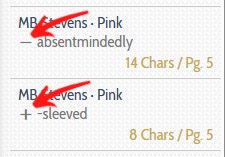
Notice that to the left of the changed text in each item is either a + or a -, allowing you to know what is an additon and a deletion:
And, when an addition/deletion is immediately followed by the opposite (representing text that the user changed), the item will have both a - and a + line to group those changes as effectively being one change:
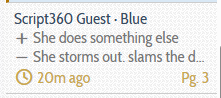
To jump to any revision in the list, click on that item and the script will scroll right to it:
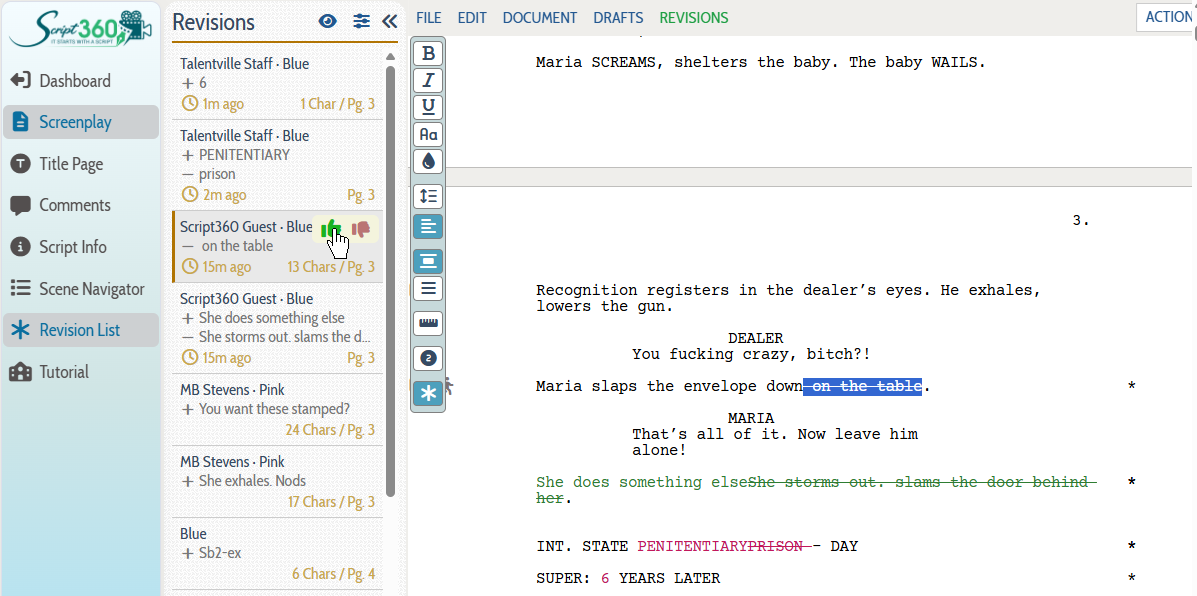
Approving/Declining Revisions
Sometimes you might just want to keep the revisions showing in color in your script. But, often, you might want to make additions permanent or deletions permanently removed. This can be done using the thumbs up/down icons that will show up when you hover your mouse over a particular revision in the list:
Just keep in mind that approving an addition makes it normal text, and approving a deletion actually deletes the text permanently. Declining an addition will delete that text, and declining a deletion will actually restore the text that was deleted.
The other thing to remember is that when you approve or decline a revision, it will also disappear from the sidebar as it is not longer actually a marked revision but instead it is a permanent part of the screenplay.
Loading screenplays…
Loading members…
Loading posts…
Attachments/Media
Click on a tab's name to open it, and click it again to close it.
| Title | Size | Uploaded | Actions |
|---|
No Attachments
No Images
No Videos
No Audio Files
Scripts
Attachments/Media
Click on a tab's name to open it, and click it again to close it.
| Title | Size | Uploaded | Actions |
|---|
No Attachments
No Images
No Videos
No Audio Files