
Activity Log
Loading content...
Revisions and Collaboration
We let you see and act on changes made by others
See at a glance changes made by others
Integral to collaborative script editing, where you can invite others to make changes to your script, it the need to see what others changed. Remember, things you change you might remember, but something added, deleted or changed by someone else will just show up in the script, whether or not you noticed it.
To facilitate having others' edits marked as revised, the Invite system allows you to set just that when you invite someone to edit your script:
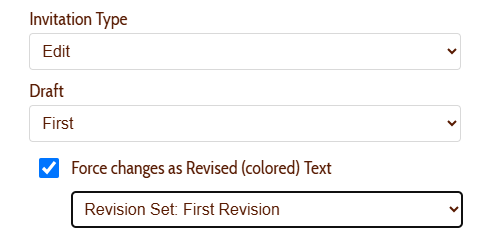
Note the Force changes as Revised Text check box, and the dropdown menu below it. If this check box is on (as we strongly recommend), then anything the invitee does to your script gets marked as revised, which will allow you to see and approve/decline each change later.
Note that when you force the invitee's changes to be marked as revised, you will need to select a revision set for their changes, as all revisions must be in one set or another. If the check box is not turned on, they can still change your script, but you will have no direct way to know what they changed, possibly surprising you later when something you thought was in the script had been changed without you knowing it.
Showing only revisions in a given Set or by a specific collaborator
Because you can have any number of collaborators on a script, if multiple people are actively editing the script, even with forced revisions, it can become a bit overwhelming without being able to filter them down. To accomplish this, use the Revisions menu to tell the editor what to show and what to hide:
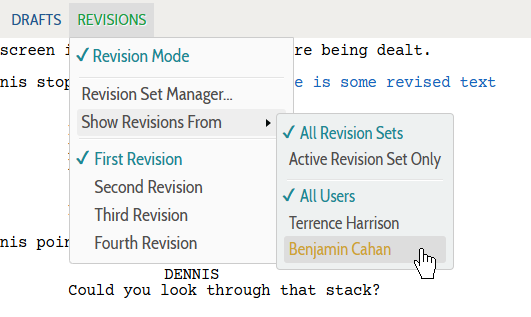
Use the Show Revisions From submenu to choose whether to show revisions from all Sets or just the current one, and also to tell it whether to show all or just some users' changes. Of course, if you are just showing the current Set, use the Revision Set list in the main Revisions menu to choose whichever Set you want shown.
Approving/Declining Revisions
When you are looking over revisions, whether yours or by collaborators, you will probably want to keep the changes you like and discard the ones you don't. After all, in the end it is your script. This process is accomplished using the Revision List sidebar, explained in the next topic.
Loading screenplays…
Loading members…
Loading posts…
Attachments/Media
Click on a tab's name to open it, and click it again to close it.
| Title | Size | Uploaded | Actions |
|---|
No Attachments
No Images
No Videos
No Audio Files
Scripts
Attachments/Media
Click on a tab's name to open it, and click it again to close it.
| Title | Size | Uploaded | Actions |
|---|
No Attachments
No Images
No Videos
No Audio Files