
Activity Log
Loading content...
Editing vs. Viewing
Others will view the draft You want them to read
The Published and Working versions of your Script
To ensure that others you invite to read your script see the draft you want them to read, Script 360 separates your private working drafts from the one that can be read by others, with there being at most a single published copy of each screenplay. Our use of the word Published is intentional, since the alternate word, Public, infers anyone can read that copy, which is not the case. Anyone other that you must be invited (by you or the script's co-authors) before they can read it.
Which draft of your script (if any!) gets 'published' as the readable copy is completely up to you, just remember that the published draft represents the script at the time it was copied over - when you make significant changes to your working draft, you likely will want to publish it again it to update the published version.
Whether you created a blank script or upload a completed script (using FDX or PDF files), we do not automatically create a published copy - we leave it to you to decide if and when you want a copy of the script that is readable by others.
To Publish a Draft (in the Editor)
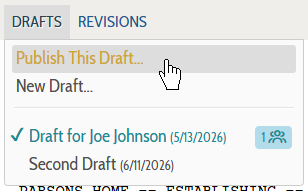
When you feel the draft you are editing is ready to publish, choose the Publish this Draft... item from the Drafts menu:
Because creating a published version overwrites any previous published copy, we do ask if you are sure to avoid unneeded accidental overrites:
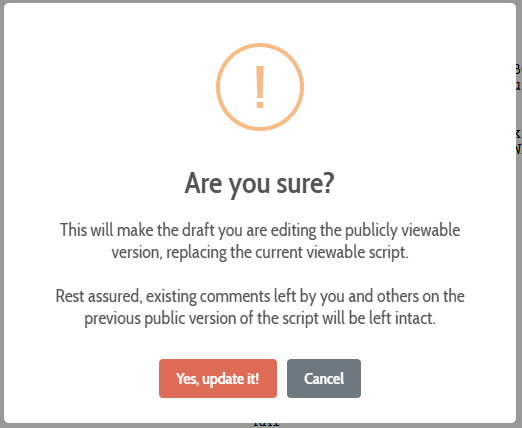
If you click the red Yes button, the draft you're editing will be made the published version. Keep in mind that the published version is a copy of the script at that moment of time, if you make subsequent changes after publishing, those changes will just be in the working copy until such time as you yet again publish the script.
Because we consider the readable versions of a script to be the showcase for presenting your script in its finest light, our script reader (as opposed to the editor you use when writing/editing the script) never shows revised text in color, as well as never showing 'revised' deleted text (which you can show in the editor). So, no need to remove or hide revisions prior to publishing your work.
Of course, if you change the text color or bold or underline text, all of that will appear in the reader, just not text revised in Revision Mode.
To Publish a Draft (from the Summary Page)
Even though this is the Editor Tutorial, note that you can also publish any draft of a script right from the script's summary page. In the Gear icon at the right side of the drafts listing, you will see a Publish This Draft item that also causes that draft of the script to be Published:

On the summary page after publishing...
When you leave the editor and return to the script's summary page after publishing a draft of your script, you will see a tag in the Drafts list noting which version of the script was Published, and when:

Note a few things: First, there is a red X icon that allows you to remove the published draft. Keep in mind that if you do so, anyone you have invited to read your script will no longer be able to read it until you publish another draft to create a new readable copy of your script. Second, the Editing indicator shows which draft you are currently editing. If there is just a single draft, it will be that one, if there are multiple, that is the draft that will come up when you click on the Edit Script button.
Loading screenplays…
Loading members…
Loading posts…
Attachments/Media
Click on a tab's name to open it, and click it again to close it.
| Title | Size | Uploaded | Actions |
|---|
No Attachments
No Images
No Videos
No Audio Files
Scripts
Attachments/Media
Click on a tab's name to open it, and click it again to close it.
| Title | Size | Uploaded | Actions |
|---|
No Attachments
No Images
No Videos
No Audio Files