
Activity Log
Loading content...
Tracking Revisions
See at a glance what has changed
Revision Mode (and collaboration) lets you see what has changed
Writing is rewriting (or so they say), and marking revisions is a critical aspect of screenwriting, especially when you or others make changes and edits to one of your scripts. Script 360 allows you to not only maintain multiple sets of independent revisions, but to see those revisions clearly on screen, with revision marks (*) in the right margin and text in different colors that represent the revisions left by a given person (you and others).
Turning Revision Mode On and Off
Normally, when you edit a script, the changes just happen - like editing any document in a word processor. You add something, you delete something, you write a new scene, on and on. That is how you write your script.
But, when you want to record your changes to see later, or for others editing your script to see, you can turn on Revision Mode, which will make all changes show up clearly in defined colors - and that means both additions as well as deletions:
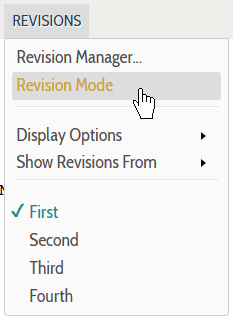
If you turn on Revision Mode (by selecting it in the menu), three things will occur:
- First, the Revisions menu in the top menu bar turns green
- Second, you will see an indicator in the bar at the bottom of the script
- Third, the little * icon in the icon bar (to the left of the script) will have a dark blue background
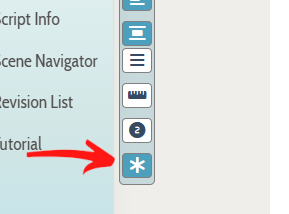
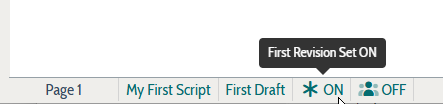
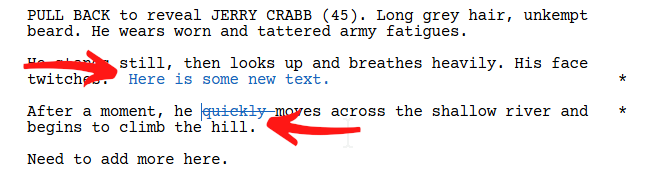
Once Revision Mode is on, all text that you add, or delete, gets marked as revised, which allows you to see at a glance the changes you have made:
When inviting collaborators, you can force their changes to be marked as revised
While our collaboration is explained elsewhere in this tutorial, a key feature to note is that when inviting others to edit your script, you can specify whether all of that person's changes should be marked as revised (we suggest that!). In that case, all text they add (additions) and anything they delete (deletions) are appropriately marked, allowing you to see (and later to approve or decline) all changes they made to your script.
In terms of revised text, for now note that each person's changes will appear in a specific color, allowing you to differentiate between changes made by you or others simply by the color of the text.
Loading screenplays…
Loading members…
Loading posts…
Attachments/Media
Click on a tab's name to open it, and click it again to close it.
| Title | Size | Uploaded | Actions |
|---|
No Attachments
No Images
No Videos
No Audio Files
Scripts
Attachments/Media
Click on a tab's name to open it, and click it again to close it.
| Title | Size | Uploaded | Actions |
|---|
No Attachments
No Images
No Videos
No Audio Files